Enabling and Disabling Services
The Environment Details station in the Admin Portal provides a list of the Managed Services available to be used for the environment. This article gives an in depth explanation of how these services can be enabled and disabled for an environment, and the internal workings of what happens when an enable or a disable action is triggered.
Use the Admin Portal (https://admin.service.eu.axinom.com) for environment and tenant administration tasks (for administrators), such as enabling and disabling services.
Use the Management System for content and workflow operations (for editors). It has a different URL and a separate authentication flow.
Core Services
There are three services which are core to any Mosaic environment.
- Microfrontend Service
- Management System Service
- Identity Service
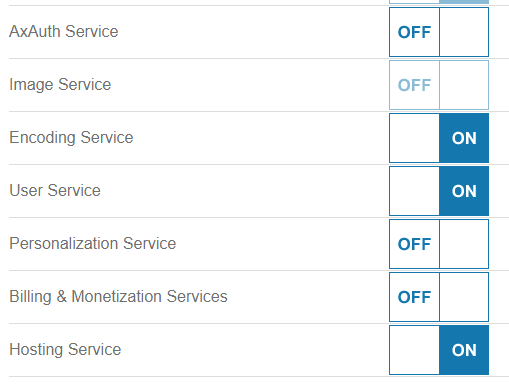
These services are enabled by default when an environment is created, and are essential for the environment’s operation. Once these services are enabled, the toggle button which gives a user the ability to disable a service becomes inactive. This is because by design, these core services are not allowed to be disabled once they are enabled.
Core services which do not allow disabling

Other Managed Services
All other Managed Services in Mosaic, such as AxAuth, Video, or Image can be enabled and disabled at the environment administrator’s discretion.
Enabling a Service
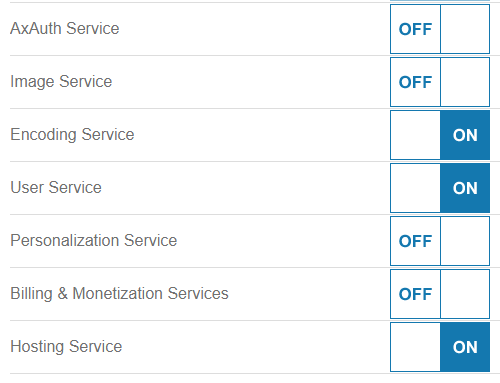
A service can be enabled by clicking on the respective toggle button for the service which is in the OFF state, and then by either navigating away from the Environment Details station (this can be done by navigating to the same station by clicking on the environment breadcrumb as well) to confirm the state change.
Managed Services that can be enabled and disabled
When the service state change is confirmed, the following sequence is triggered:
- The Identity Service sends a command via the message broker to the respective service to enable itself for the environment.
- The service initializes itself for that specific environment.
- If the service provides workflows, the service requests the Microfrontend Service to publish those workflows to the environment.
Image Service in enabling state
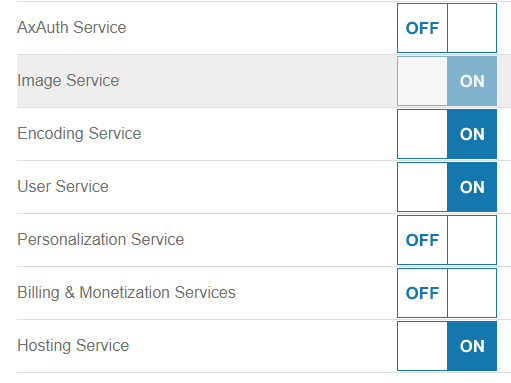
After publishing the required workflows for the environment, the Microfrontend Service will fire a message indicating that workflow publication is finished. Subsequently, the service will fire a message stating that the service has finished enabling.
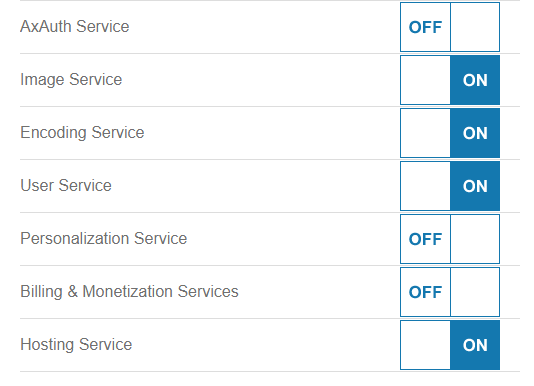
Until the final message is fired by the service, the state toggle button will be inactive. Once the service enable finished message is received by the Identity Service, the service state toggle button will be active again.
Image Service in enabled state
Disabling a Service
All services except the core services can be disabled once they are enabled. When a service is disabled, all data related to that service is purged and is not recoverable. For this reason, the user is asked to confirm the action.
The service disabling flow is:
- Click an enabled service toggle and navigate away from the station to confirm the state change.
- The Identity Service sends a disable command to the respective service.
- If workflows were published, they are unpublished through the Microfrontend Service.
- The service reports completion to the Identity Service.
- The service state toggle becomes active again, allowing administrators to enable it again.
Image Service in disabling state
When Service Enabling or Disabling Fails
There can be instances where the service enabling fails. Even though this is a rare occurrence, it is a possibility. (One reason can be due to a validation failure from a service.) If this happens, the user will see that the service state toggle button does not get active.
Messaging in Mosaic is designed with resilience in mind so that if it fails the first time, it will re-attempt multiple times to send the messages and complete the action.
Service Log Messages
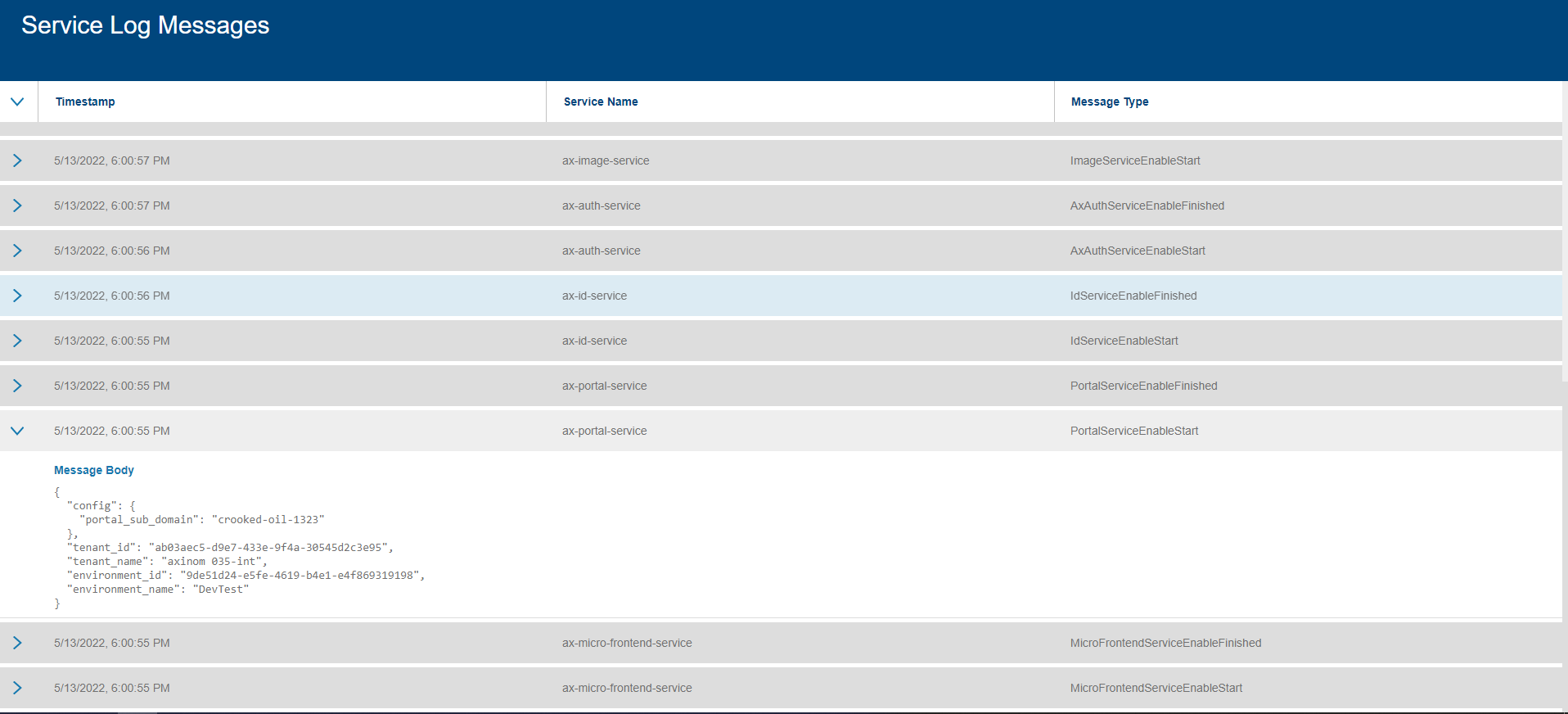
The action button Service Log Messages in the Environment Details Station will navigate the user to the Service Log Messages station which logs all commands and messages shared through the message broker related to the environment/service enabling and disabling.
Service Log Messages
Service Configuration Hub
From the Environment Details station, a user can navigate to the Service Configuration Hub, through the Service Configuration action.
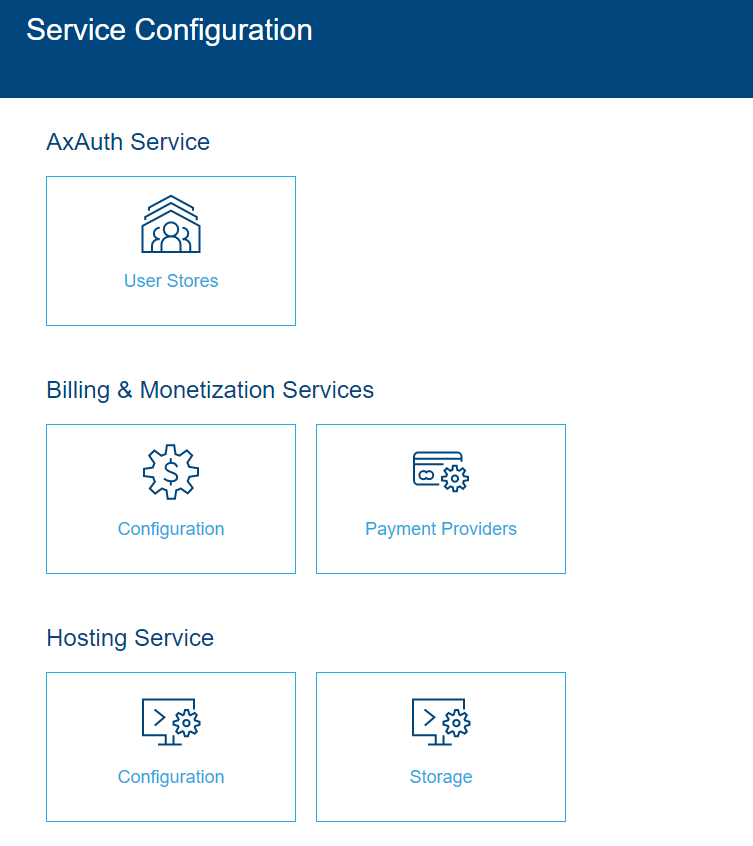
This station acts as a hub to configure all configurable managed services. The user can navigate to various configuration options for each service by clicking on the relevant tile.
In case a certain service is not enabled for the environment and the user navigates to a configuration station, a message will be displayed on the top of the station indicating that the service must be enabled to make the configurations.
Service Configuration Hub